 Corta
User guide
Documentation index · Project overview
🇺🇸 English · 🇨🇳 简体中文 · 🇭🇰 繁體中文 · 🇯🇵 日本語 · 🇰🇷 한국어 · 🇩🇪 Deutsch · 🇫🇷 Français · 🇪🇸 Español · 🇧🇷 Português
Everything Corta does, and how to reach it. Each section says where the feature lives — a menu, a shortcut, a setting — and links to the reference that holds the details. Shortcuts are the defaults, and all but Find Next and Find Previous can be changed (Keyboard shortcuts).
- Install and update
- Coming from another terminal
- Windows, tabs and panes
- Text, fonts and themes
- Personalizing the terminal
- When a session ends
- Scrollback, search and selection
- Links and file references
- Shell integration
- The working directory
- Directory suggestions (zsh)
- History suggestions (zsh)
- Remote work: SSH and SFTP
- Images in the terminal
- The command palette
- macOS integration
- Speed and battery
- Settings and the config file
- Keyboard shortcuts
- When something goes wrong
Install and update
Corta needs macOS 26.0 or later, Apple silicon and a Metal 4-capable
GPU. A virtual machine with a paravirtual GPU cannot render the terminal.
Download the .dmg and its .sha256 file from
GitHub Releases, keep
both in the same folder, and check the checksum there before opening the
image (replace x.y.z with the downloaded version):
shasum -a 256 -c Corta-x.y.z.dmg.sha256
open Corta-x.y.z.dmg
Drag Corta into Applications, then eject the image. Releases since 1.1.9 are disk images; 1.1.8 and earlier keep their original ZIPs.
Official releases are Developer ID-signed and notarised. If macOS rejects
a download, follow Troubleshooting. Launched from anywhere else, Corta offers to
move itself into /Applications (suggest-applications-folder).
Updates. Corta ▸ Check for Updates… checks now; a background check
runs once a day unless update-auto-check = false. An update is only
installed when you say so.
Coming from another terminal
Corta has no importer: it reads one text file, ~/.config/corta/config, and
the Settings window edits the same file. Most habits carry over through a
handful of keys. The left column names where the habit lives elsewhere; the
right is the Corta key (Configuration has each one's
values and when it applies).
| If you relied on… | In Corta |
|---|---|
⌥ as Meta / Alt (iTerm2's Left Option key: Esc+, Ghostty's macos-option-as-alt) | option-as-meta = true. Off by default, so ⌥ types é, ø and – as macOS does. |
| Copy on select | copy-on-select, on by default. Set false for ⌘C only. |
Programs copying to the clipboard over ssh or from tmux (OSC 52) | allow-clipboard-write = true. Off by default; reading the clipboard is not possible under any setting. |
| Being asked before closing a busy window | confirm-close, on by default. |
| Windows reopening where you left them | restore-windows, on by default. Layouts, tabs and working directories come back; processes and terminal text do not. |
| Your own colour scheme | A theme defined in the file (theme.<name>.*), or View ▸ Theme editor…. Creating and editing themes. |
| Your own key bindings | bind.<command> = <shortcut>. The command names are in Keyboard shortcuts. |
| A font of your choice | Settings ▸ Appearance ▸ Font, or font-family. Only monospaced families Corta can lay out on its grid are offered. |
| Ligatures, transparency or per-profile settings | Not available; they are not shipped, and each needs a decision first. Presets cover a shell, a directory and an environment (Presets). |
tmux -CC control mode | Not supported (D09). Ordinary tmux runs inside Corta as any program does. |
Shell integration. Standard local zsh sessions load Corta's hooks
without touching your startup files. If your ~/.zshrc, ~/.bashrc or
config.fish still sources another terminal's integration — iTerm2's,
WezTerm's, Visual Studio Code's — Settings ▸ Terminal ▸ Shell Integration
says it may conflict; the two can both emit prompt marks. See
Shell integration.
TERM. Corta announces xterm-256color (D08). A remote host that
already works with iTerm2 or Terminal.app needs nothing new; one set up for
xterm-ghostty or xterm-kitty gets the common value instead.
Behaviour that differs in smaller ways — copying, closing, remote badges — is collected in Troubleshooting → Behaviour that differs.
Windows, tabs and panes
Tabs sit in the titlebar row, beside the window's close, minimise and zoom
buttons. Each shows the program its focused pane runs — a dark prompt tile for
a shell, the program's own colours otherwise — then its name and directory,
left-aligned. A program gets its icon once it takes the terminal — a REPL, an
editor, an agent, a connected ssh; a command that only runs and prints, such
as java -version or git status, keeps the prompt tile. A tab with split panes stacks the other panes' icons behind the
front one, turned away; clicking a pane brings its program to the front. Hover
a tab for its close button, drag it to reorder, double-click it to rename, and
right-click it for New Tab, Rename Tab…, Close Tab and Close Other Tabs. When
there are more tabs than fit, the row scrolls sideways — swipe on it, or turn
the mouse wheel over it — and follows the tab you select.

| To… | Use |
|---|---|
| Open a window / a tab | ⌘N / ⌘T |
| Previous / next tab | ⇧⌘[ / ⇧⌘], or ⇧⌃Tab / ⌃Tab |
| Show tab 1–8 / the last tab | ⌘1–⌘8 / ⌘9 |
| Rename the current tab | Double-click the tab title, or right-click ▸ Rename Tab… |
| Split the pane to the right / downwards | ⌘D / ⇧⌘D |
| Move focus between panes | ⌥⌘ + arrow key |
| Resize the focused pane | ⌃⌘ + arrow key |
| Fill the window with one pane, and back | ⇧⌘↩ (Zoom Pane) |
| Make every pane the same size | Equalize Panes (command palette) |
| Close the pane, tab or window | ⌘W |
| Put back the pane you just closed | ⇧⌘T |
- Rename a tab directly in its title: double-click, or choose Rename Tab… from its right-click menu. Return saves, Esc cancels, and an empty name restores the automatic title. Custom names survive shell output and session restoration. The tab and terminal right-click menus also offer New Tab, and the toolbar's + button opens one; the strip has no + of its own.
- Tabs between windows. Drag a tab down off the strip and let go to give it a window of its own, or onto another window's strip to move it there; its panes keep running. Window ▸ Move Tab to New Window and the tab's right-click menu do the first, Window ▸ Merge All Windows gathers every window's tabs into the front one. Dragging a tab to either end of a strip that scrolls carries the row along with it.
- Zoom Pane is temporary: nothing closes and no process is disturbed.
- Reopen Closed Pane restores the pane's place, size and working directory — not the program that was running in it.
- Closing a pane with a command still running asks first
(
confirm-close). - Restoring windows. Quit and relaunch, and every window comes back
with its tabs, splits, divider positions and each pane's working directory
(
restore-windows, on by default). Each pane starts a fresh process; terminal text and running jobs are not restored. - Presets. A preset is a named shell, directory and environment, defined in the config file. Shell ▸ New Pane with Preset opens one; hold ⌥ to open it in a window of its own (Presets).
- New windows open at
columns×rowscells (120 × 30 by default).
Text, fonts and themes
- Font. Settings ▸ Appearance ▸ Font lists System Monospaced (the
default) and every installed monospaced family Corta can lay out on its
grid, in two groups: Apple Fonts (shipped with macOS, or Apple's
on-demand fonts once downloaded in Font Book) and Installed by You. The
line under the menu says where the chosen font comes from and whether
it brings its own CJK characters — such a family draws letters and
symbols in its CJK design too, a raised
~for example.font-familyin the config file is the same setting.font-sizeis 13 pt by default, 10–24 pt in whole points. The page previews the font, colors and cursor. - Weight and line spacing. Weight is Light, Regular (the default) or Medium; a font without that weight uses its Regular, and bold text is always the font's own bold. Line spacing is 1.0–1.4 times the font size, 1.18 by default; a font that needs a taller line keeps it, so nothing is clipped. Every character in every language shares one cell size and one baseline.
- Characters the font lacks. Chinese, Japanese and Korean come from
macOS's own fonts: Han from PingFang SC, PingFang TC, Hiragino Sans or
Apple SD Gothic Neo by your system language, kana from Hiragino Sans and
Hangul from Apple SD Gothic Neo whatever the language. To draw them in
a font of your own — Menlo for letters and Sarasa Gothic or LXGW WenKai
for Chinese, say — choose it under CJK font (
font-family-cjk). Any installed font with Chinese, Japanese or Korean characters is listed, monospaced or not: it draws only those characters, centred in their two cells, and the main font keeps the cell size. Emoji come from Apple Color Emoji — or, with Emoji set to Monochrome Where Possible, as a text glyph where Apple Symbols or Menlo has one. A wide character is centred in its two cells. Turn off Use other fonts for missing characters to see only the chosen font, with a box where it has no glyph. - Ambiguous-width characters. Settings ▸ Terminal ▸ Ambiguous-Width
Characters makes
±,§, Greek, Cyrillic and the other East Asian Ambiguous characters two cells wide, for software written for CJK terminals. It applies to output written afterwards; a shell or editor that measures text itself may still count them as one. - Underlines. Programs can draw single, double (
SGR 21or4:2) and curly (SGR 4:3, Neovim's diagnostics) underlines; dotted and dashed draw single. Blinking text (SGR 5) is kept but not animated. - Zoom. ⌘= / ⌘− / ⌘0 or a pinch make the text bigger, smaller or the configured size again, in the current window only. Zoom never changes the config file. Font changes never move or resize the window: the visible rows and columns refit to it, and what is left of a cell shows as background under the last row.
- Theme. Three built-in themes,
corta,solarizedandmono, each with light and dark variants;appearance = autofollows macOS as it switches. Light and dark mode choose their themes separately in Settings → Themes — a light Solarized beside a dark Corta istheme = light:solarized,dark:corta. A switch blends the window into its new colours. You can define your own theme through View ▸ Theme editor… or in the config file, or inherit from one and change a few colours (Themes). - Unicode. Chinese, Japanese and Korean text takes two columns and lines up with everything else; emoji, combining marks, flags and emoji sequences are one cluster each. Characters the font lacks come from the system's fallback fonts. Standardized emoji presentation sequences (a text character followed by VS16, like ⚠️ or ✍️) take two columns; text presentation stays narrow.
- Input methods. Pinyin, Kana, Hangul and every other macOS input method compose in place, with the candidate window beside the cursor.
- True colour. 24-bit colour, the 256-colour palette, bold, italic, underline, strikethrough, dim and reverse.
- ⌥ as Meta. Off by default, so ⌥ types the layout's characters. Set
option-as-meta = truefor Emacs-style Meta keys. - Bell. A flash of the pane (
bell = visual), or a sound (bell = audible).
Personalizing the terminal
Cursor appearance
Open Settings (⌘,) → Appearance → Cursor. Choose Block, Bar or Underline,
then enable Blink cursor if desired. The default is Block, blinking off.
The three shapes and independent switch provide six combinations. These are also cursor-shape and
cursor-blink in the configuration file. Changes apply to open panes.
Terminal programs can temporarily choose their own shape and blinking through
DECSCUSR; parameter 0 or a terminal reset returns to your configured defaults.
Blinking pauses when a pane is inactive, hidden or showing scrollback.
Input-source indicator
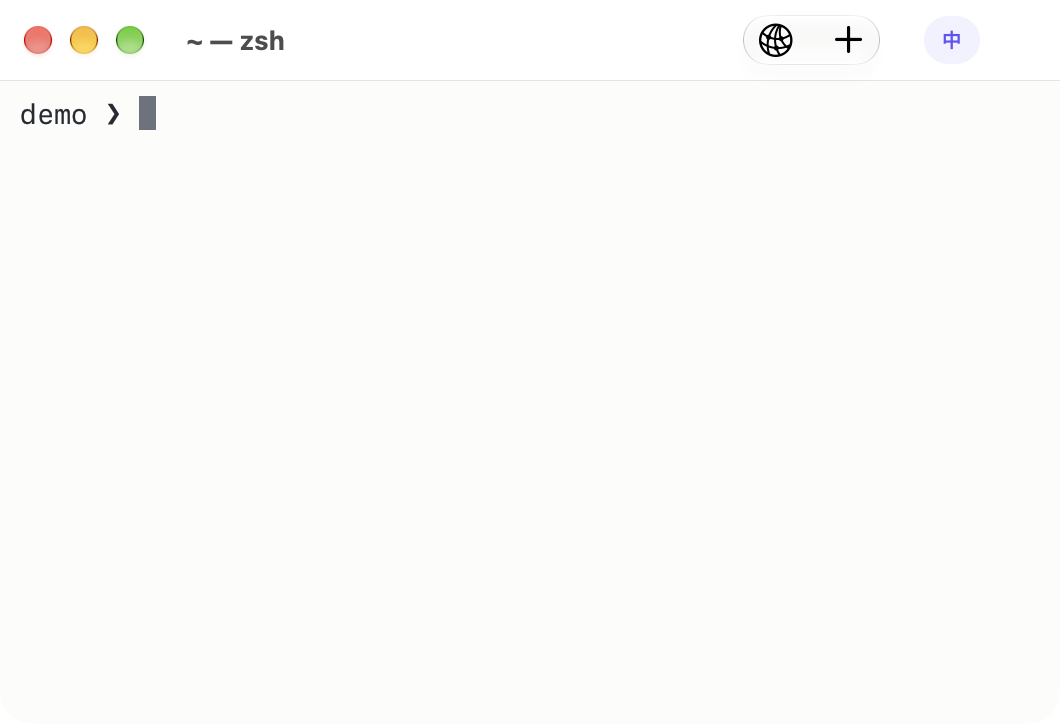
The focused terminal shows a small badge in the window’s upper-right toolbar:
A for confirmed direct input, 中 for Chinese, あ for Japanese and 한
for Korean. Other sources use their language code. Hover for the full source
name. A neutral badge identifies sources whose internal input mode is not
reported by macOS, including third-party IMEs with private English toggles.
Corta never guesses that mode from typed text and never changes the input source.
Settings ▸ Keyboard & Mouse ▸ Input Source Indicator chooses Automatically
(default), Always in focused pane, or Off. The default only
enables the indicator for users with an enabled non-Latin keyboard layout or
an IME; Latin-only keyboard setups remain uncluttered. Switching back to a Latin
layout keeps a quiet A on a faint background — gray in the toolbar, the
theme's own text colour beside the prompt. Beside the prompt, non-Latin
layouts and built-in IME modes use a soft indigo tint; in the toolbar every
source is gray, the glyph itself telling them apart. Beside the prompt,
colours follow the terminal theme's darkness rather than macOS's. In the
toolbar the badge stays while a program runs — Claude Code, an editor — since
it covers no output. At the right edge of the command line, shell integration
hides it during command execution in Automatically mode. Always
can keep it during command output. Both prompt modes hide it while reading
scrollback or using an alternate-screen program.
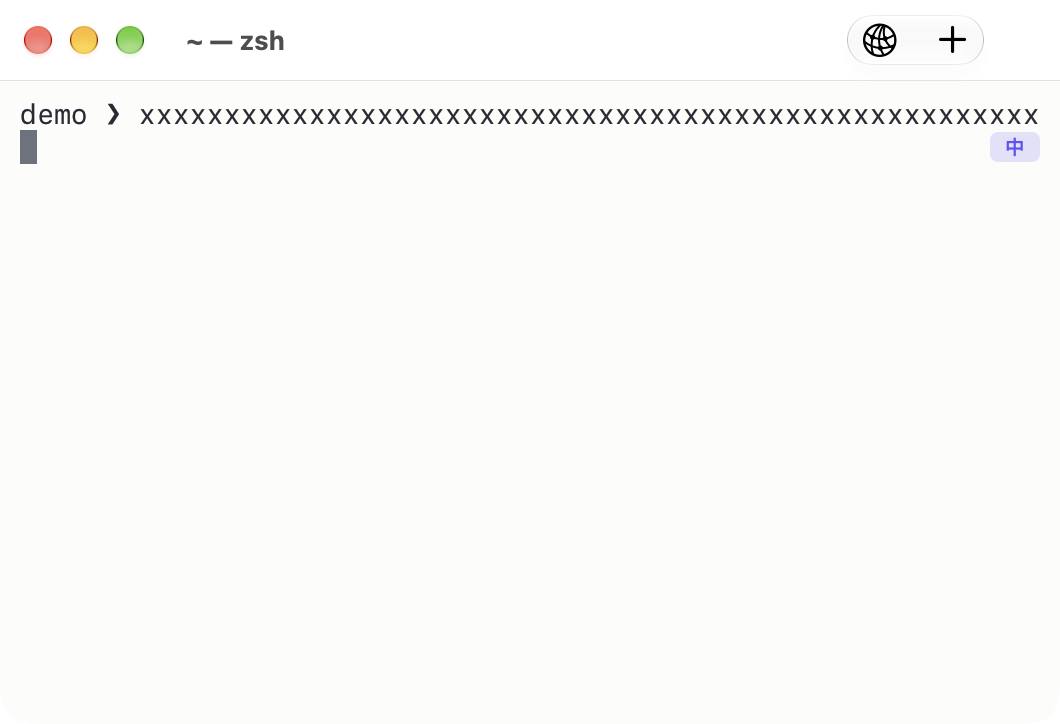
The Position setting chooses Window toolbar (default) or Right edge of command line. The toolbar badge sits independently of the Connect and New Tab buttons and stays fixed as commands grow or wrap. Turning it off or choosing command-line placement removes its toolbar slot and separating space. With command-line placement, long commands move the badge down to free space, keeping it at the right edge; it hides when no safe row remains and never inserts a line or scrolls the child. Direct-input and IME colors accept hex values; clear a field for the subtle default styling.
Chinese input-source badge · Long-command avoidance
Optional local system status
Open Settings (⌘,) → Terminal, enable Show system status under Bottom Status Bar, then select the metrics you want to see: CPU usage, system load, memory usage, network rates, disk free space and thermal state. It is off by default; each metric has its own toggle. Click the bar to see the local host's name, macOS version, chip, core count and total memory. The bar says Local even in an SSH pane; it does not monitor a remote server. In narrow windows, click for the full selected metrics.
The network interface defaults to auto. It measures one primary interface, so VPN traffic is not added to physical traffic. Enter a specific interface name in Settings to measure it instead. Sampling stops while every enabled bar is hidden. Thermal state is a four-level macOS report, not degrees.
The bar uses compact labels, a single-space separator and short byte units; full names and precision are in its tooltip, its accessibility value and the host-details popover.
Creating and editing themes
Settings → Themes → New, beside Light Mode or Dark Mode, opens a graphical editor; what you save becomes that mode's theme. Name your copy, switch between dark and light variants, and change colors using color pickers or HEX values. The preview updates without changing terminal windows. Save theme activates and persists it; Cancel keeps your previous theme. Custom themes offer Edit theme. Restore source colors resets the current variant. You can still edit the same config file by hand. If that custom theme changes outside the editor, reopen the editor before saving.
View → Theme editor opens graphical color editing directly. View → Local host details shows host configuration without requiring the optional status bar. The same host-details button is available in Settings → Terminal. Appearance previews follow explicit mode changes immediately and show the selected cursor shape and blink state. Terminal programs can still temporarily override cursor style.
Compact Tab indentation (zsh)
Standard local zsh sessions load the bundled hooks automatically when Directory suggestions or History suggestions is enabled (both default to on). You do not need to modify your startup files. If you use custom zsh arguments or have turned off that automatic bootstrap, install or update Shell Integration in Settings → Terminal, then open a new shell. With those hooks loaded, Tab on a whitespace-only command line inserts four spaces. Tab after command text retains the existing completion binding. This is a ZLE widget; terminal output tab stops remain eight columns, and full-screen programs continue receiving the Tab key. Without the integration, the shell retains its own input-tab behavior.
Language
The app follows macOS’s preferred language for Corta: English, Simplified and Traditional Chinese, Japanese, Korean, German, French, Spanish and Brazilian Portuguese. Restart Corta after changing its app-language preference in macOS. Numeric formatting follows the current locale.
When a session ends
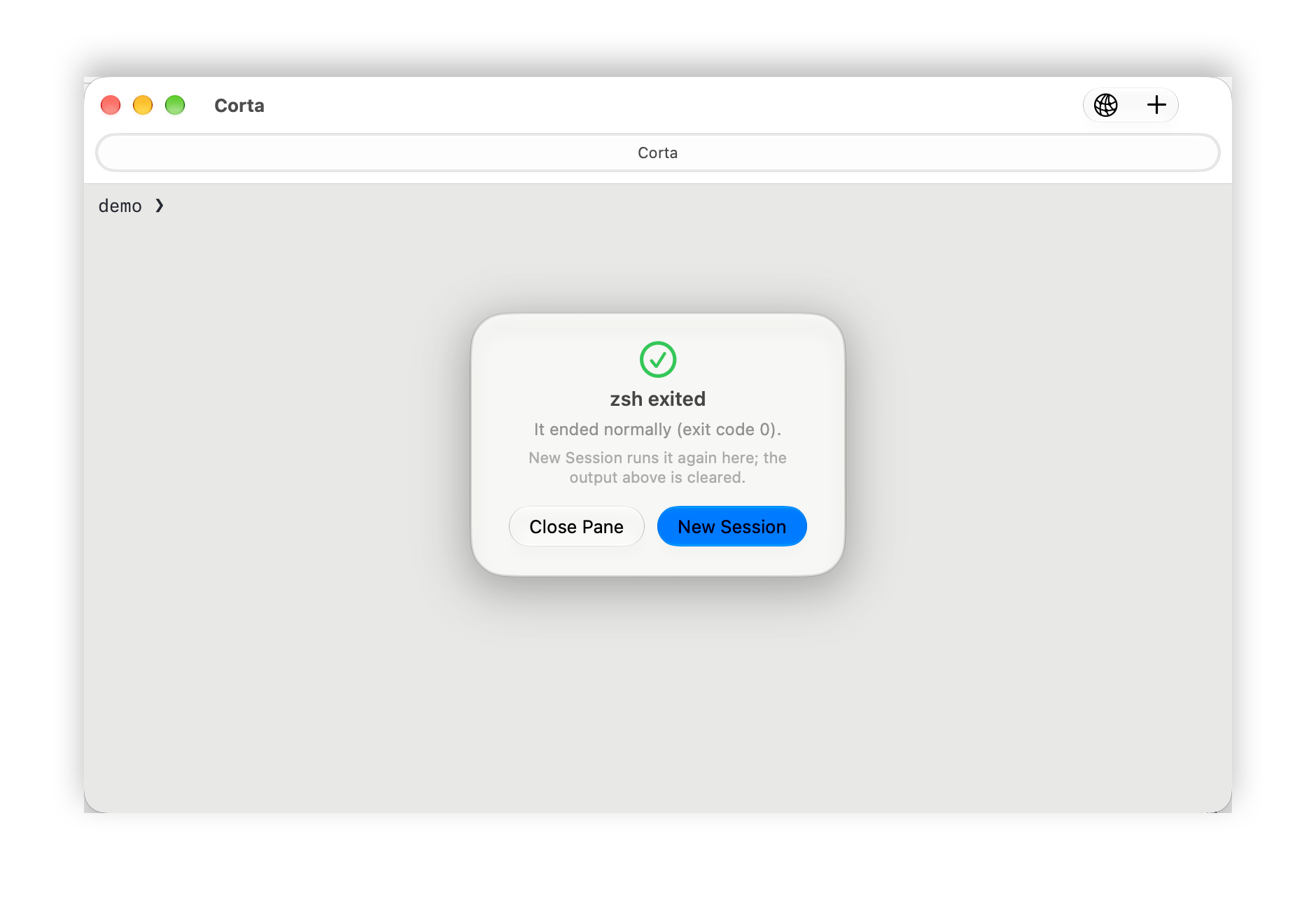
A pane keeps its output after the shell exits: the output is dimmed a little and a panel says what ended and how — the exit code, or the signal that stopped it, in a sentence. The cursor disappears, but scrolling, selection, copying and ⌘F search still work around the panel. New Session starts the shell or preset again in the pane; Close Pane closes it. A directly connected SSH session says which host it was connected to and offers Reconnect to start a new connection; ssh's exit code 255 is explained as the network dropping or the host not answering. Either button clears the output above — the panel says so — and the new session starts at the pane's size and font size. Exiting Python or another program back to a live shell does not end the terminal session.
When a session's input or output fails, or a pane stops drawing, the same panel offers Try Again or, for a connection, Reconnect; the system's own error text is under Details.
Scrollback, search and selection
-
Scrolling. The trackpad or wheel, or ⇧PageUp / ⇧PageDown, ⇧Home / ⇧End. Each session keeps
scrollback-linesof history (10,000). -
Search. ⌘F opens the search bar over the scrollback; ⌘G and ⇧⌘G go to the next and previous match. Match Case and
*(regular expression) toggle there, and remember their state in the config file (search-case-sensitive,search-regex). The bar sits at the top right of the pane and moves to the bottom while the cursor or the current match would be under it; in a narrow split it narrows rather than covering the pane. Each pane has its own bar. -
Selecting. Drag to select, double-click for a word, triple-click for a line. A finished selection is copied at once (
copy-on-select); ⌘C copies too. A copy is confirmed by a band of light sweeping once along the copied text (a single soft flash with Reduce Motion), or a toast when the text is scrolled out of view. Inside a program that uses the mouse —vim,htop— hold ⌥ while you start dragging to select text anyway (mouse-override-modifier). -
Paste. ⌘V. Pasted text is marked as a paste (bracketed paste), so a shell that supports it — zsh, fish, bash 5.1 or later — inserts a pasted command without running it until you press Return. When the program has not turned bracketed paste on (macOS's own
/bin/bash3.2 never does), Corta warns before pasting text that contains a line break. It also warns for a pipe into a shell (orbash <(curl …)and its kin), sudo, recursive forced deletion, a backslash continuation, or invisible/bidirectional characters, even with bracketed paste enabled. Review the risk sentences and text preview before choosing Paste or Cancel; hidden characters appear as⟦U+202E⟧codes. Don’t warn again for this pane lasts until that pane closes. Setpaste-warning = alwaysto warn on every multiline paste, oroffto disable these dialogs. These are conservative patterns, not a shell parser or a guarantee that other text is safe. A large paste the shell is still working through can be cancelled with ⌃C: the part not yet sent is dropped and the interrupt goes straight through. -
Right-click. The clicked pane offers Find… and Copy Command Output for the completed command whose output contains the clicked row; the copy item is disabled on prompts, on the alternate screen (full-screen programs) and without shell integration. On a link it offers Open Link and Copy Link; on a
path:line:columnreference it offers Open Path and Copy Path. Opening uses the same link checks, configured editor and remote confirmation as clicking. Programs with mouse reporting still receive right-clicks. -
Export Text… (⇧⌘S) saves the selection — or, with nothing selected, the whole scrollback and screen — to a file.
-
Clearing. Three commands, because they discard different things:
Command Screen Scrollback Modes and colours Clear Screen (⌘K) erased; ready shell prompt and input kept kept kept Clear History kept discarded kept Reset Terminal erased discarded reset With shell integration, Clear Screen moves the ready prompt and its complete input to the top, keeping the editing cursor, wraps, colours and wide characters. It sends no keystrokes and never executes the input. A prompt still being printed, a running command, or a shell without ready prompt markers keeps the ordinary erase-and-home behavior. Alternate-screen programs such as vim are left intact; an editor whose prompt has scrolled into history is also left intact to avoid erasing part of its input.
Clear History and Reset Terminal ask first and say how many lines they would discard — unless the scrollback is empty, or
confirm-close = falseturns the question off.
Links and file references
- URLs show their target and the ⌘-click instruction on hover, and open with ⌘-click; set
link-activation = clickto open them with a plain click instead. Hold ⌘ over a link — including one a program marks explicitly (OSC 8, asls --hyperlinkprints) — to underline it and see its real target as a tooltip before you click; the click itself opens it at once. - File references. A
path:line:columnin program output — a compiler error, a test failure — opens in your editor with ⌘-click. Tell Corta which editor withopen-file-command, starting with the editor's full path, for exampleopen-file-command = /usr/local/bin/code --goto {file}:{line}:{column}(Following a file reference).
Opening any file reference requires a configured open-file-command. Corta
never opens output-derived files in their system default application: some
file types run code when opened.
Shell integration
Shell integration lets Corta see where each command starts and ends. Install
it from Settings ▸ Terminal ▸ Shell Integration: it adds one marked block
to your shell's startup file — ~/.zshrc; for bash both ~/.bashrc and
~/.bash_profile (or whichever login file bash reads); or
~/.config/fish/config.fish — and Remove takes out exactly that block.
The startup-file block is only installed when you press the button. Standard
local zsh sessions also load Corta's bundled hooks automatically, without
editing your startup files, when Directory suggestions (zsh) or History suggestions (zsh) is enabled
(the default). Custom zsh arguments, bash, fish and remote shells do not
use this automatic bootstrap. Install compatible hooks in those shells to
enable command boundaries there.
When Settings reports an outdated integration, choose Update and open a new shell. Updating the app alone does not replace a previously installed startup-file block.
With the hooks loaded, automatically or through startup-file installation:
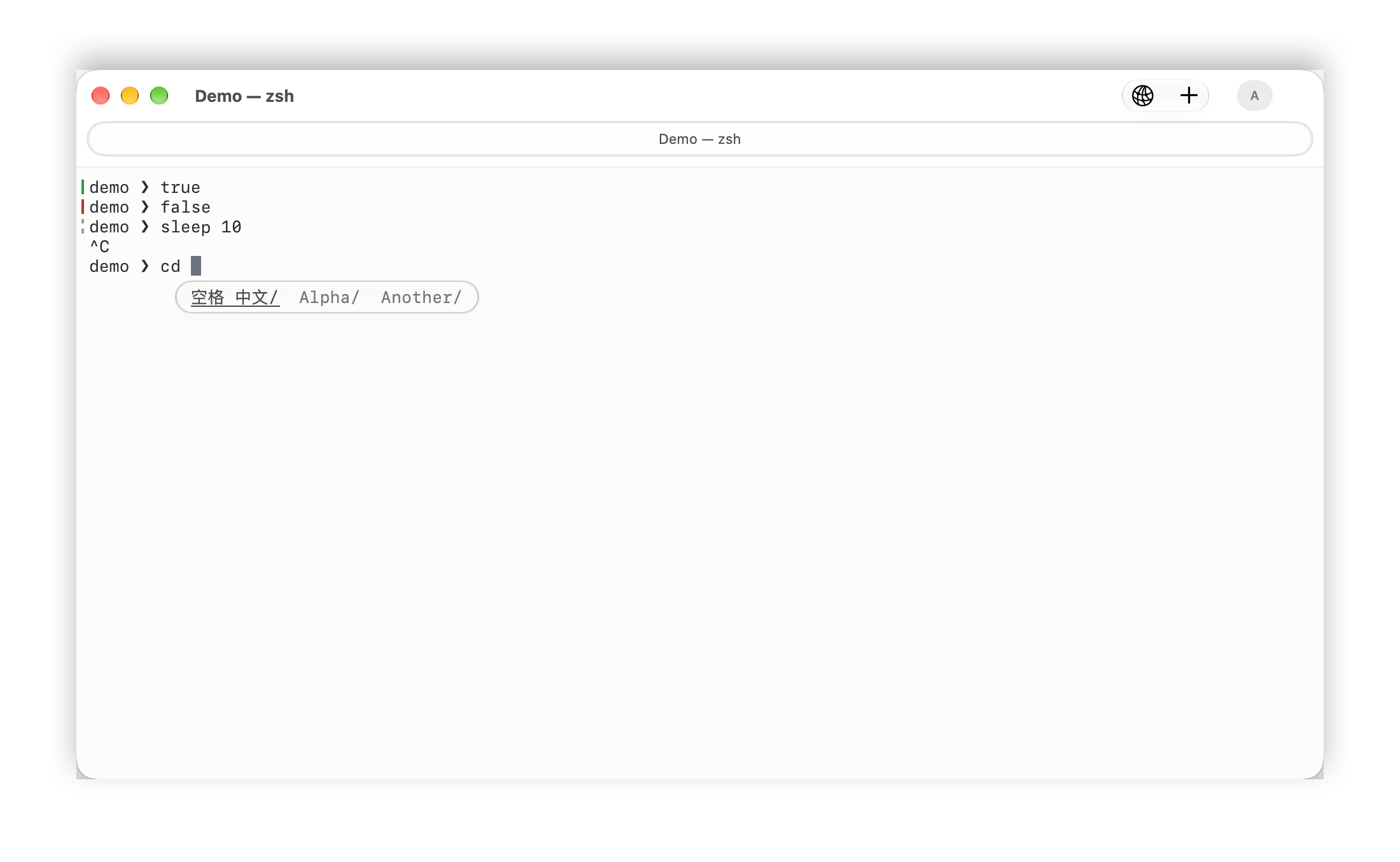
- Prompt marks. A thin rule at the left of each prompt, green when the command succeeded and red when it failed. An empty Return draws no rule and creates no completed command-history entry.
- Jumping. ⌘↑ / ⌘↓ move between commands, and also stop at marks a
program sets with iTerm2's
OSC 1337;SetMark; ⇧⌘↑ / ⇧⌘↓ move between the ones that failed. - A command's output. From the command palette: Copy Last Command
Output, Snapshot Running Command's Output (what a build has printed
so far), Export Command Output… to a file, and Open File Reference
in Command Output, which opens the last
path:lineit printed. - Command History. Search Command History… lists every command
with its time, exit status and directory; Fill puts one back at the
prompt and Run runs it again (
command-history-limit). A command the list cannot show whole — more than one line, cut off at the row's edge, or holding a tab — or one whose text changed since the list showed it is filled rather than run, so all of it is at the prompt and runs on your Return. - History and About windows. Command History opens centered over the invoking window, kept within its display's usable area; Corta ▸ About Corta opens in the middle of that display, as other apps' About windows do. An already open window stays where you moved it. Command History's fixed size keeps the search and directory/project/status/host filters visible; an empty result shows No Commands and the result count.
- Long-task notifications. With
notify-on-long-task = true, a command that ran longer thannotification-thresholdseconds (30) posts a notification when it finishes while its window is not key, provided macOS has granted Corta notification permission. Enable it in Settings ▸ General and check the permission status there. Click the notification to jump to the command.
Without shell integration these commands are disabled rather than silently doing nothing, and notifications fall back to a guess based on typing and output.
The working directory
Corta knows the directory your shell is in when the shell reports it (shell integration does). From the command palette:
- Reveal Working Directory in Finder and Copy Working Directory Path.
- Change Directory to Parent and Change Directory to Project Root
(the nearest folder with
.git) type thecdfor you — only when no command is running and the prompt is empty. - Open Parent Directory in New Pane and Open Project Root in New Pane split the pane with a shell started there.
The folder icon in the title bar is the directory too: drag it, or ⌘-click
it to see the path. With directory-history on (the default), Corta records
the local directories your commands ran in. Nothing in the app lists them
yet; Settings ▸ Privacy & Security ▸ History shows how many there are
and clears them.
Directory suggestions (zsh)
Corta includes directory suggestions, enabled by default in standard local
zsh sessions. Type cd to see folders in the current directory in a
compact panel beside your input. It appears below the input when there is
room, or above it near the bottom of the pane. A rounded glass capsule with
a tinted background and border distinguishes it from earlier output;
it can temporarily cover a small part of that output and reserves no
terminal rows. Keep typing to filter the folders; a faint suffix
appears beside the cursor. For example, cd De can suggest Developer/.
Suggestions are previews: they are not part of your command until accepted.
While a suggestion is visible:
| Key | Action |
|---|---|
| Left / Right | Select the previous / next folder instead of moving the input cursor. |
| Tab | Fill the selected directory into the input; do not execute it. This replaces native Tab completion while suggestions are visible. |
| Esc | Dismiss suggestions for the current input. Press Esc before using Left / Right to edit the command, or again for the shell's own Esc action. With bindkey -v the same press also enters command mode. |
| Up / Down | Keep the shell's normal command-history navigation. |
| Shift+Tab | Pass through to the shell's configured binding. |
| Return | Execute only the actual input; never automatically accept a faint suggestion. |
You can filter relative paths, subdirectories and ~/ paths. After Tab
fills a folder ending in /, its subdirectories become the next candidates;
repeat to build a deeper path, then press Return when you want to run cd.
Only folders are offered, so a folder containing only files has no further
directory candidates. Hidden folders
appear when you type a dot prefix. Complex shell expressions keep native
completion. Bash and fish retain their own completion; suggestions appear
only in a shell Corta started with its automatic zsh hooks, never on remote
machines or in custom shell commands, even with Shell Integration installed.
Optional: turn it off. In Settings ▸ Terminal ▸ Shell, turn off Directory suggestions (zsh), or set this in your config file:
directory-completion = false
This immediately disables Corta's suggestions and key interception, leaving the shell's native editing and completion available. Reopen the shell after enabling it again. There is no startup-file block to delete for the automatic local hooks. If you also installed shell integration manually, its Remove button removes that separate startup-file block; removal is not needed to turn off directory suggestions.
History suggestions (zsh)
In a standard local zsh session, typing the start of a previous command
shows its remaining text faintly after the cursor. The most recent matching
single-line command wins. For example, after running git status, typing
git st suggests atus. The hint is only a preview until you accept it.
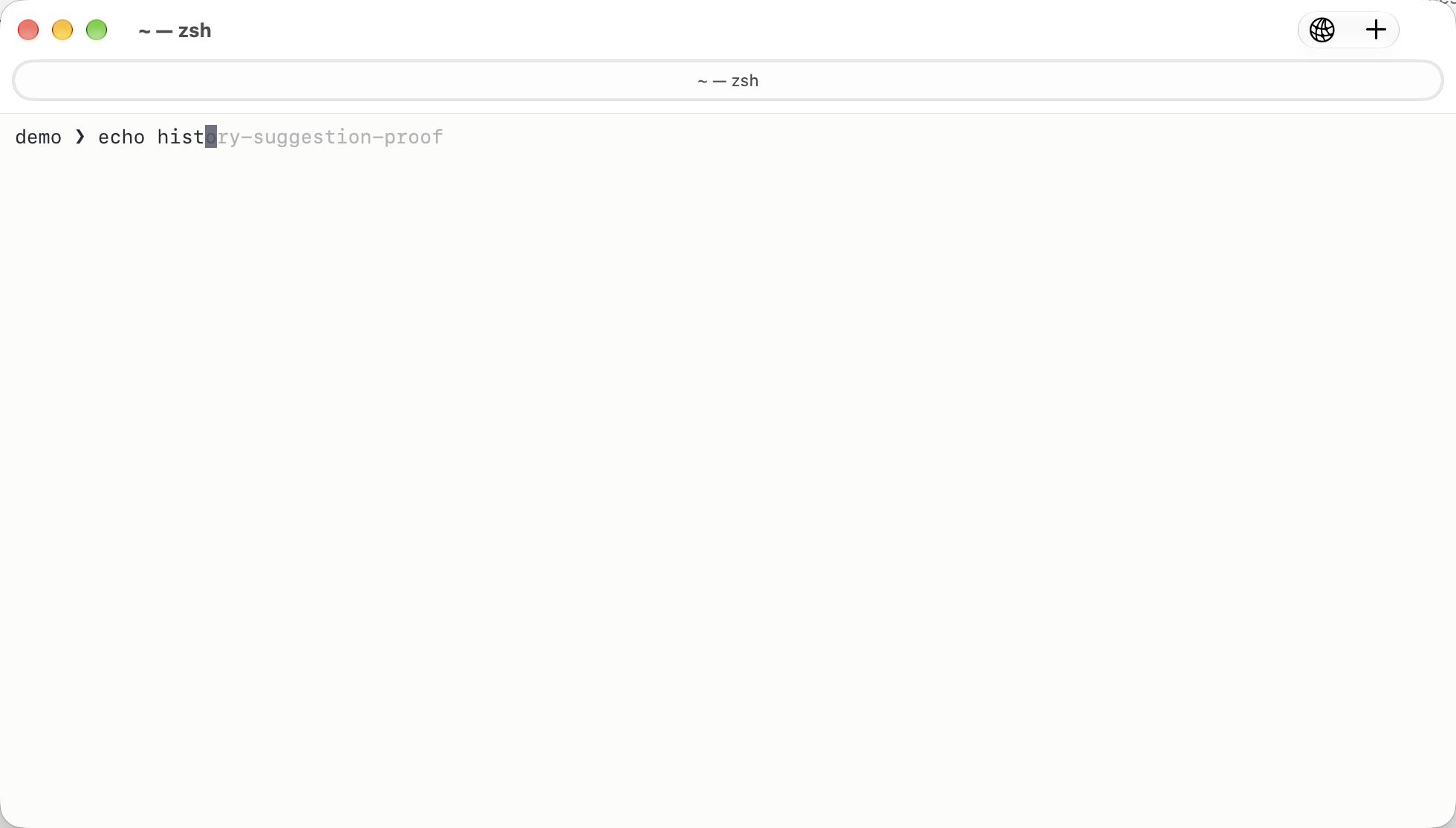
| Key | Action while the hint is visible |
|---|---|
| Right / End | Append the suggested suffix at the end of the input, without executing. |
| Esc | Dismiss the hint until the input changes. With bindkey -v the same press also enters command mode. |
| Tab / Shift+Tab / Up / Down | Keep the shell's normal completion and history bindings. |
| Return | Execute only the actual input. |
Empty input, a cursor in the middle of the line and multiline history entries
show no history hint. cd keeps directory suggestions while they are on,
and gets history hints when they are off. Input-method composition hides
hints, leaving the IME's own candidates available.
If zsh-autosuggestions is loaded, Corta leaves history suggestions to it.
Bash, fish, remote shells and custom startup commands keep their own editing.
The default is on. Disable Settings ▸ Terminal ▸ Shell ▸ History suggestions
(zsh) or set history-suggestions = false to hide hints and restore native
keys immediately. Reopen the shell after enabling. Directory suggestions
have their own toggle. Both use temporary startup wrappers and leave your
startup files unchanged. Corta uses zsh's in-memory history, never reads
HISTFILE, and never logs or saves suggested text. Suffixes longer than 128
Unicode characters are omitted.
Remote work: SSH and SFTP
Corta uses the system's OpenSSH — your ~/.ssh/config, keys, agent and
ProxyJump all apply — and has no SSH implementation of its own.
- The host badge. A pane connected to another machine shows Remote: at the front of the window title. It names the host and folder when the remote shell reports them (shell integration installed there), and the destination you typed when the connection came from the connect sheet; otherwise it says the pane is remote without knowing which host.
- Reconnect. When an
sshormoshsession ends, Reconnect to Host runs the same command again, as a new connection. - Connecting. The toolbar's globe button opens Connect to Host, a
sheet with a Terminal / Files (SFTP) switch: a terminal over SSH, or
the file browser. Type the host — a name, an address,
user@hostor an SSH alias. The host field, mode switch, suggestions and buttons use rounded glass surfaces. In a small window the sheet scrolls to keep all fields and actions reachable. Advanced holds the user, the port and a private key; leave them empty and your~/.ssh/configand OpenSSH's defaults decide them. A chosen key is offered first, and other keys inssh-agentare not tried. The sheet lists the connections you made recently — with the port, key and when you last used them — and theHostnames in your~/.ssh/config. Hosts that only take git (github.com, or aHostwithUser git) are left out, and the list says which. Type to narrow the list, click one (or use ↑ and ↓ from the host field) to fill the fields, double-click or press Return to connect. A terminal connection joins the recent list once it is established — a host that refuses you, or has no shell, does not. Hover over a recent host and click ✕, or right-click it, to forget it; Settings ▸ Privacy & Security ▸ Recent Hosts clears them all. - This pane's files. Opened from a pane connected to another machine, the sheet offers that host's files first; press Return or Browse Files to open them.
- Browse Remote Files… opens an SFTP browser for the pane's host: list,
upload, download, rename and delete. The first connection to a host asks
you to confirm the host name. Transfers resume after an interruption and
never overwrite a file without asking.
A folder download stops if a name conflicts with a
.corta-partstaging file, preserving the existing file. Choose a separate destination or resolve that file individually; a folder-wide overwrite cannot consume a partial. - In the browser, as in Finder: ⌘[ and ⌘] go back and forward, ⌘↑ to the enclosing folder, ⌘R refreshes, ⇧⌘G (or a click on the path) types a path, ⇧⌘N makes a folder and ⇧⌘. shows hidden files. Click a column title to sort. Right-click a row for its actions; double-click a folder to open it. Drop files from Finder on the listing — or on a folder row — to upload them; while you drag, the listing (or the row) is outlined and says where the files will go. Drag a file out to Finder to download it. Transfers are under the toolbar's arrows button, with speed, time left and Show in Finder.
- Editing a remote file. Edit in the browser — or ⌘-clicking a
path:linein a remote pane — downloads a copy and opens it in your editor. Set Settings ▸ Terminal ▸ Open File Command first, using an absolute editor executable and{file},{line},{column}placeholders (examples). Uploading your changes is a separate, explicit step, and Corta checks first whether the remote file changed meanwhile. Files over 64 MiB are not copied this way; download them from the browser, which shows progress and can cancel. A copy nobody has opened or changed for 30 days is removed the next time remote editing is used; one with changes you have not uploaded or dismissed stays. - Names. A remote name holding control, right-to-left or zero-width
characters shows them as
�, and a download saves them as_, so a name cannot pass for another one.
When the server asks for a password, a key passphrase or a one-time code,
or when a host is new and its key needs your decision, the browser asks in
a dialog on its window and hands your answer to OpenSSH; nothing is saved,
so a reconnect asks again. Cancel Connection in the password dialog
ends that connection attempt and returns to the host field — it is not
sent as an empty password. Cancel on a key's passphrase skips that key,
and ssh goes on to the next way of signing in. The host-key dialog shows
the fingerprint and defaults to Cancel. A key held by ssh-agent or the
keychain, or an existing ControlMaster connection from your terminal,
signs in without asking.
A connection that fails says why in a sentence — the password or key was not accepted, the host did not answer, its host key is unknown or changed, the server offers no SFTP — with ssh's own words under Details, and offers Try Again or Edit Connection.
Remote-edit uploads compare remote content as well as size and modification time and send the private snapshot you approved. If you save another local edit after the approval prompt, Corta asks for a new decision; saves during an upload remain pending. After a connection failure, the next edit or upload connects again, and a failed upload keeps its pending decision. Once connected, an operation that has not finished after 120 seconds is stopped and the upload offered again, so a stalled connection cannot hold an edit forever. Preserve undecided local edits before deleting application data. See data-at-rest policy.
Images in the terminal
Programs that speak the kitty graphics protocol can show images inline:
kitten icat --transfer-mode=stream picture.png
Images scroll with the text, stay in the scrollback, and are removed by
Clear Screen or Clear History along with the text around them. Inside a
program's scroll region — a full-screen program's pane, say — an image moves
with the region's text and is cropped where it scrolls past the region's edge.
An image may be up to 8192 pixels on a side and 16 million pixels in all. Other tools
that support the protocol, such as timg or chafa, can use it too, as
long as they send the image itself: Corta refuses by design to read a file
path a program names, and animation is not supported. A picture larger than the
pane is scaled to fit it.
The command palette
⇧⌘P opens the command palette: every command Corta has, searchable by
name, with its shortcut beside it. Type a few letters and press Return.
Letters match in order, not necessarily together (spr finds Split Pane
Right); a group's name (panes) or a command's configuration name
(new-tab) finds it too. Commands you ran recently are listed first.
Clicking another window closes the palette and leaves that window in front.
It is the quickest way to reach the commands that have no default shortcut.
macOS integration
- Shortcuts. Two actions: Open Corta Window (optionally in a folder) and Focus Corta Window. Neither runs a command in a shell.
- Services. Selected terminal text is offered to the Services menu.
- Secure Keyboard Entry. Shell ▸ Secure Keyboard Entry stops other applications from reading your keystrokes while Corta is in front — for typing passwords. A lock in the title bar shows when it is actually on.
- VoiceOver reads the terminal's text and follows the focused pane.
- Clipboard from programs. Off by default. With
allow-clipboard-write = true, a program — including one insidetmuxor overssh— may put text on your clipboard (OSC 52). Nothing may read it back.
Speed and battery
Corta does the fast thing on its own; nothing here needs a setting. This is what it does, so you know what to expect.
- Typing gets the panel's full refresh rate. While you type, paste or compose with an input method, Corta asks for the display's maximum frame rate — 120 Hz on a ProMotion panel — and lets it settle a second after the last key. Low Power Mode, an inactive window and thermal pressure lower the ceiling again when you are not typing; critical thermal pressure always does.
- Full screen with one pane can reduce latency on macOS 27 or later. Corta
then presents its frames straight to the display, skipping the window
server's compositor: about one frame less from keypress to glass on the
measured Mac. A split, the find bar or anything else drawn over the text
brings the compositor back while it shows. On macOS 26, every window uses
the classic-queue copy path as a compatibility measure for a WindowServer
crash (#380); the latency figures above were not
measured on that OS. (
CORTA_DIRECT_FULLSCREEN=0in the launch environment disables the full-screen changes, but not the macOS 26 compatibility path.) - Output reading and display have separate paces. The PTY reader
continues parsing while the screen presents the latest state at the
display's pace. A measured core-feed benchmark reached 317.3 MiB/s;
that figure excludes PTY I/O, rendering and display and is not a promised
speed for a real build log or
yes. - Scrolling and full-screen programs redraw only what changed. vim, less, tmux and a status line scroll by shifting what is already drawn.
- Long scrollback stays small. History is compressed in memory as it scrolls away — the measured memory increment for 100,000 lines of 120 columns was about 11 MiB — and search, copy and resizing work on it directly.
- Idle means idle. A blinking cursor is animated by macOS rather than redrawn by Corta, an idle shell causes no periodic wakeups, and a window that is covered or minimized stops drawing entirely.
- Hidden panes yield. Two seconds after a pane is hidden — another tab, a minimized window — its output is read at background priority, so it does not compete with what you are looking at. Nothing is lost, and typing or pasting into it restores full priority at once.
Performance has the measurements and how they were made.
Settings and the config file
All settings live in one text file, ~/.config/corta/config. Corta ▸
Settings… (⌘,) edits the same file, and editing the file by hand is just
as supported:
Settings is a sidebar of categories, the way System Settings is laid out:
- General — the new-window size, restoring windows, confirming close, long-task notifications and updates.
- Appearance — light or dark, the system monospaced font, size, and a live preview, cursor shape/blinking and graphical theme editing.
- Terminal — scrollback, the command-history limit, the bell, search defaults, the open-file command, shell integration, optional system status and local host details.
- Keyboard & Mouse — Option as Meta, how links open, the modifier that selects text while a program owns the mouse, copy on select and input-source indicator modes/colors.
- Shortcuts — every command's key; a reset arrow appears beside one you have changed.
- Connections — Connect to Host, and saved presets.
- Privacy & Security — clipboard writes from programs (OSC 52), Secure Keyboard Entry, the directory history and recent hosts.
These controls edit the same config file. Custom theme colors can be edited graphically or through the file.
The window toolbar's globe button connects to a host, for a terminal or for its files: a sheet on the window with the host — it may be a config alias — and the user, port and private key under Advanced, suggesting recent and configured hosts; an empty user, port or key respects OpenSSH configuration. From a remote pane it offers that host's files first (Remote work).
theme = corta
appearance = auto
font-size = 14
scrollback-lines = 20000
notify-on-long-task = true
bind.equalize-panes = ctrl+cmd+e
Most settings apply at once; a few (window size, scrollback length) apply to the next window or session. Configuration lists every key, its default and when it takes effect.
Keyboard shortcuts
Change any shortcut with bind.<command> in the config file; an empty value
removes it, and the keystroke then reaches the program in the terminal:
bind.equalize-panes = ctrl+cmd+e
bind.close =
Help ▸ Keyboard Shortcuts shows the ones in effect in aligned columns; commands without a binding are labelled Not Set. The terminal context menu shows the same configured shortcuts.
The Shell menu keeps splitting, reopening and Clear Screen directly available. Other tools are grouped under Move Focus, Commands and Output, Working Directory, Pane Layout, and Terminal and Connection.
The defaults, as of this version — Keyboard shortcuts is the authoritative list:
| Command | Shortcut |
|---|---|
| New Window / New Tab | ⌘N / ⌘T |
| Close | ⌘W |
| Split Pane Right / Down | ⌘D / ⇧⌘D |
| Move Focus | ⌥⌘ + arrow |
| Resize Pane | ⌃⌘ + arrow |
| Zoom Pane | ⇧⌘↩ |
| Reopen Closed Pane | ⇧⌘T |
| Bigger / Smaller / Actual Size | ⌘= / ⌘− / ⌘0 |
| Find… / Find Next / Find Previous | ⌘F / ⌘G / ⇧⌘G (Find Next and Previous are fixed) |
| Copy / Paste / Select All | ⌘C / ⌘V / ⌘A |
| Scroll a page / to the top or bottom | ⇧PageUp, ⇧PageDown / ⇧Home, ⇧End |
| Previous / Next Command | ⌘↑ / ⌘↓ |
| Previous / Next Failed Command | ⇧⌘↑ / ⇧⌘↓ |
| Export Text… | ⇧⌘S |
| Clear Screen | ⌘K |
| Settings… | ⌘, |
| Command Palette… | ⇧⌘P |
Every other command — Equalize Panes, Clear History, Reset Terminal,
Browse Remote Files…, the command-output and working-directory commands —
has no default key and is one search away in the command palette.
Keyboard shortcuts has the full
table with each command's bind. name.
When something goes wrong
Troubleshooting covers what you see when something
fails and how to fix it — a download macOS will not open, a font that is
refused, a shortcut that does nothing. Features and limitations
lists what Corta does not do yet. Report anything else on
GitHub Issues.
For usage questions, go to Discussions → Q&A,
or ask in #help on the Discord.
Coding-agent state and program notifications
Claude Code is currently the only CLI with a dedicated task-state integration. It was developed and acceptance-tested with the installed Claude Code 2.1.310 on macOS arm64; this is not a compatibility guarantee for all Claude versions. Codex, Gemini CLI, pi, Kimi, Grok Build, Qwen Code, OpenCode and Aider have no dedicated task-state adapter in Corta. Generic notification/progress protocols remain available to any program; process detection is not a full agent integration. See the compatibility scope and verification limits.
By default, agent panes distinguish Working (accent colour), Waiting for you (orange),
Done (green), Failed (red), Idle (grey), and State unknown (a hollow grey dot)
on their tab. Idle means no active turn is reported, including before
work starts or after it stops; only an explicit done means completion.
A progress ring follows OSC 7501 or OSC 9;4 reports. The Dock counts waiting
panes and shows aggregate progress. Open the command palette or Window →
Agents to find every agent pane across windows; choosing an entry focuses it.
In the palette the agents are listed first while browsing and after matching
commands while searching, and Return still runs the highlighted command:
move to an agent with the arrow keys to jump to it.
Several agents in one pane are shown by their most urgent state. Status and
application names are reported by the program, not verified identities.
Generic OSC 21337 metadata can decorate the current state with an indicator
colour and a status label when its task title is empty. Without a task state,
its label remains State unknown. status-color is retained metadata; native
tab and menu text use the system colour. Claude Code 2.1.310 does not enable
this metadata channel.
Claude Code's OSC 7501 status probe needs no setting in an ordinary interactive
session. It requires Claude Code 2.1.295 or later; Corta's checked reference
is 2.1.310, not that entire version range. Status does not pass through tmux
by enabling allow-passthrough: Claude probes tmux itself. Claude's background
sessions do not report OSC 7501 even while attached; these differ from a
hidden Corta pane running an interactive session. Unset
CLAUDE_CODE_DISABLE_TERMINAL_TITLE to allow probing and reporting. See
Anthropic's terminal requirements.
When a hidden Corta pane
asks permission, asks a question or needs sign-in, Corta posts a fixed message.
For Claude Code's own message text, set its preferredNotifChannel to
ghostty (OSC 777), iterm2 (OSC 9), or kitty (OSC 99) in Claude's
settings.json or /config → Local notifications. auto does not select a
message channel for Corta. terminal_bell sends BEL, iterm2_with_bell adds
BEL to OSC 9, and notifications_disabled disables Claude's own notification
channel; it does not disable Corta's 7501 attention notices. Corta still
identifies itself as Corta. These Claude-specific protocol details are
based on the checked reference version; availability can depend on the
installed Claude version. Claude's explicit permission notices usually wait
about six seconds without typing; completion reminders usually wait about
60 seconds and require no running background agent. These are separate from
the immediate state reports. See notification timing.
OSC 9;4 parsing does not mean Claude emits progress in Corta: 2.1.310's
progress channel requires terminalProgressBarEnabled and a terminal it
recognises as supporting progress; Corta's normal identity is not selected.
Programs without status support are detected by foreground process name
(claude, claude-code, codex, gemini, aider, opencode); add names with
agent-processes = my-agent,another-agent. These panes show State unknown
while the process is active: output and prompt redraws do not prove a task
is working. A return to the shell or a clean process exit means Idle, not
Done; a known failed exit is Failed. Notifications and BEL request attention
without changing the task state. Silence alone does not mean completion.
BEL's existing audible/visual/muted setting is unchanged. A reported shell
command boundary also ends stale status and progress when a crashed CLI
cannot send clear. Exit status 130 (or a directly launched session ended by SIGINT) means
interrupted/Idle, not Done; other
known nonzero exits mean Failed. A new reported command clears the old
summary. Without a shell boundary or a session exit, Corta cannot detect a
silent crash from output alone.
agent-status = false hides state indicators and the list.
notify-from-programs = false disables program and agent-attention notices.
Program messages are labelled as pane messages under Corta's pane name,
limited and cleaned, and coalesced to at most one delivery per five seconds
per pane. While a pane remains in a reported blocked state, a delayed program
notice does not re-alert an already announced wait. A notice arriving before
the first delivery can supply its message instead. macOS notification permission
is required; enable Badge application
icon in the app's notification settings for the Dock count. Notification Center may
retain message text and show it on the lock screen. Clicking focuses the pane;
closing or restarting the pane cancels pending program notices. Leaving a
blocked episode cancels its fixed attention notice, while independent
program messages keep their own lifetime. BEL cannot replace pending program
text or re-alert an announced wait. Visibility is checked again before
submission; system delivery after submission remains under macOS control.
Programs using OSC extensions
Use iTerm2's imgcat picture.png (or an animated GIF) to display an inline
image; GIFs show their first frame. Cell, pixel, percent and automatic sizes
are accepted, with aspect ratio preserved by default. Images scroll with the
text; Clear History removes those in history. File downloads are refused.
VS Code's shell integration uses the same prompt and command records as
Corta's hooks. iTerm2 host/cwd reports remain informational for remote hosts.
Kitty programs can set colours and pointer shapes; link hover still shows a
hand. Clipboard writes using OSC 52, iTerm2 Copy or kitty's text-only OSC 5522
subset all require allow-clipboard-write = true; reads are always refused.
printf '\e]1337;RequestAttention=once\a' requests a Dock bounce when Corta
is inactive. yes keeps requesting attention until activated, no cancels,
and fireworks behaves like once. Programs cannot bring the window forward.
The OSC verdict table records every supported,
ignored and refused family.